
1. Open Add Book
Use the Add Book action in the app’s navigation. The screen brings together search and the entry fields. Before you start, have the title and author handy; if you want to find a specific edition, the ISBN helps tell it apart from other versions.
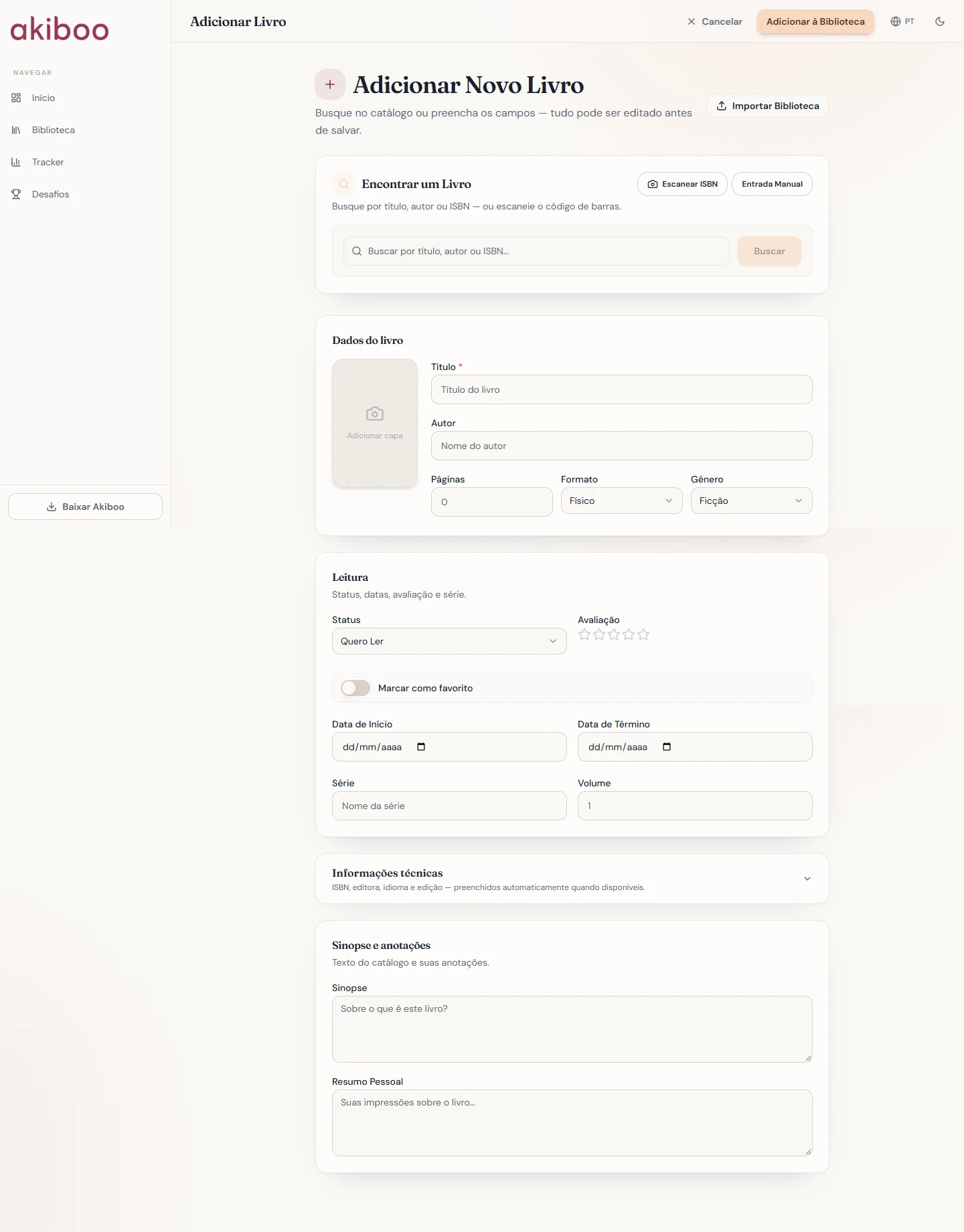
2. Search and check the edition
Type the title, author or ISBN in the search field. Select a result and review the details it fills in. Pay special attention to the author, cover, format and page count. Don’t pick an edition just because the cover looks similar: translations and different formats can have different page counts.
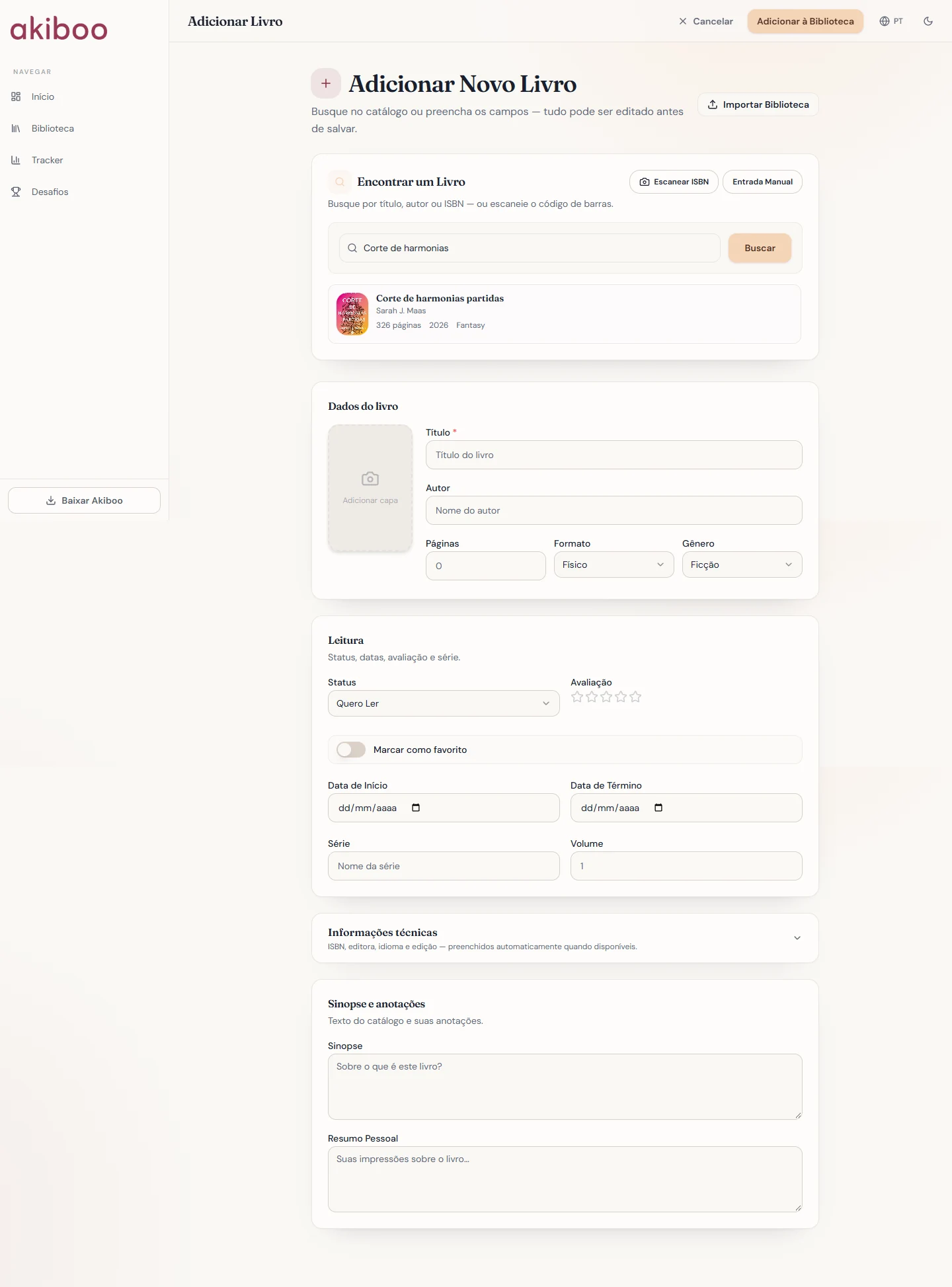
3. Fill in the fields that matter
If you can’t find the book, fill in the details manually. Set the title and use the other fields according to how you organize things. Choose print, ebook or audiobook based on the format you’re reading. For a series, check the name and volume before saving. You can add your rating whenever you like.
4. Save and check your library
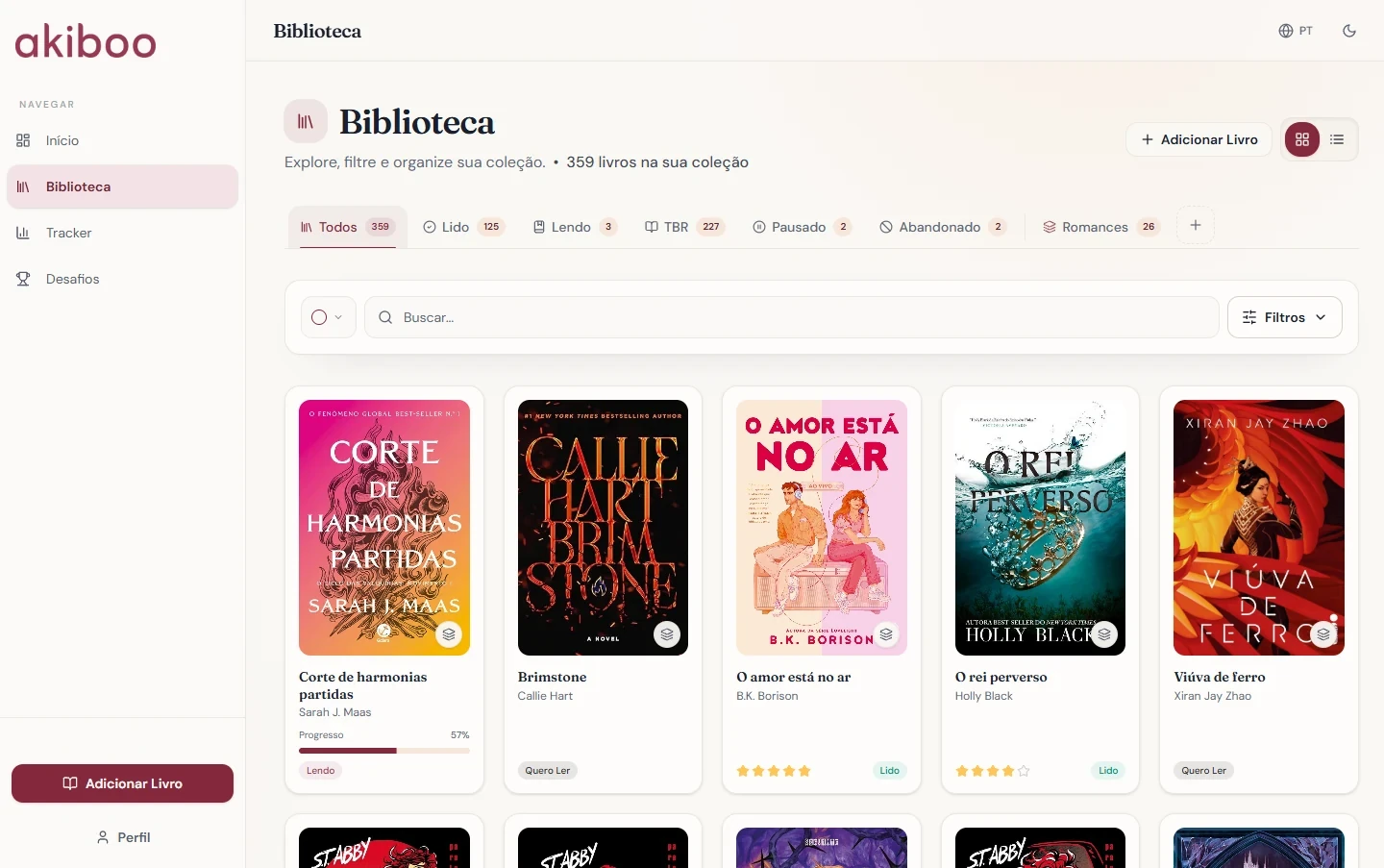
After adding it, find the book in your Library and check its status. To start reading, use the matching status; to plan your next reads, keep the titles on your list of interest. If you see a possible duplicate warning, check the existing entry before adding another copy.
See it in the app
Real demos, silent and looping, with pauses shortened to make them easier to follow.
Search for and select a book
Type the title and choose a search result. Check the edition details before continuing.
Set status, rating and dates
In the book form, choose the status and log your reading details. Review the rating and dates before saving.
Use Akiboo your way.
Start with your next read and explore the features at your own pace. See the free and Premium features in the plans.