
See how CSV import works
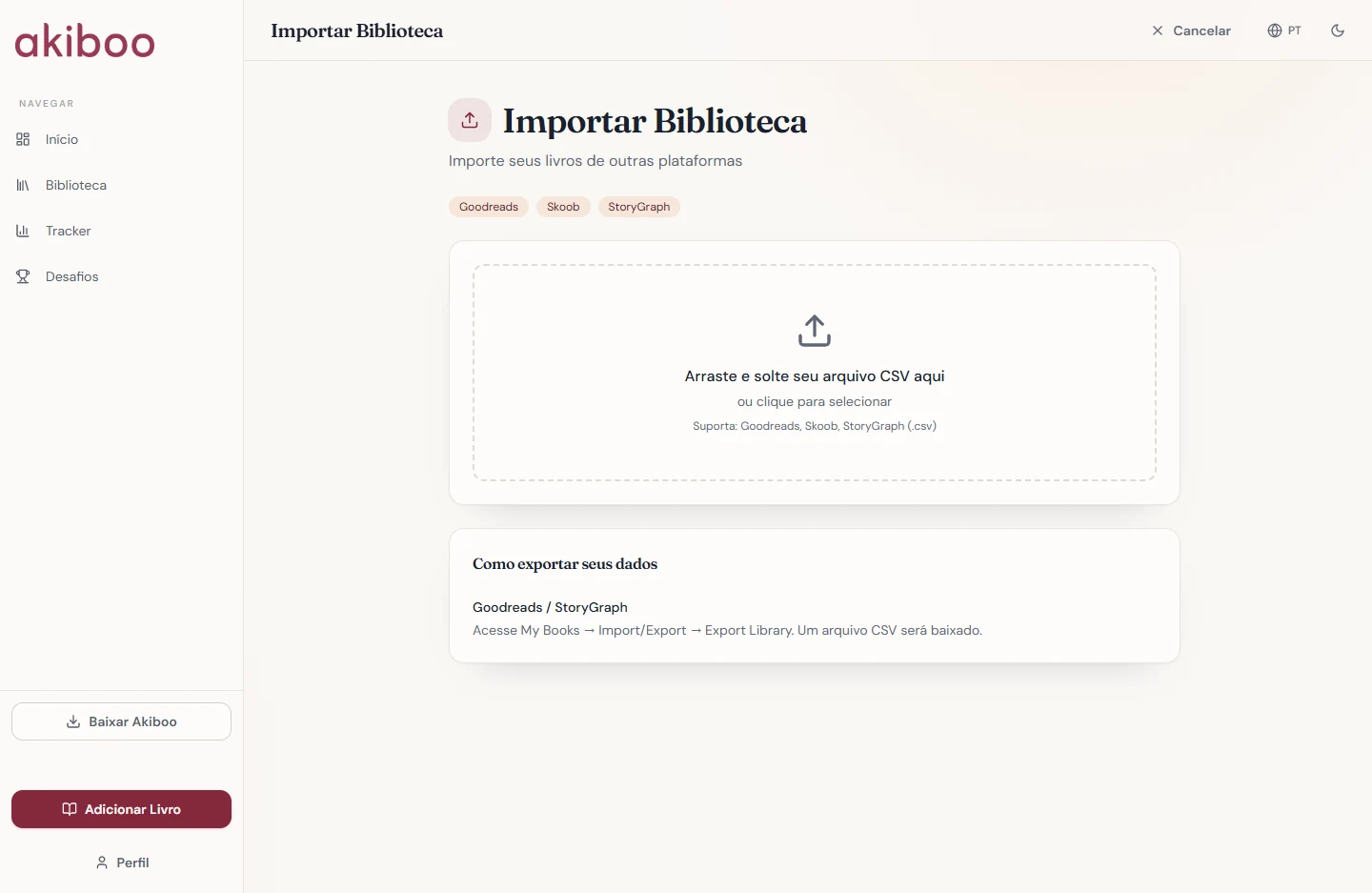
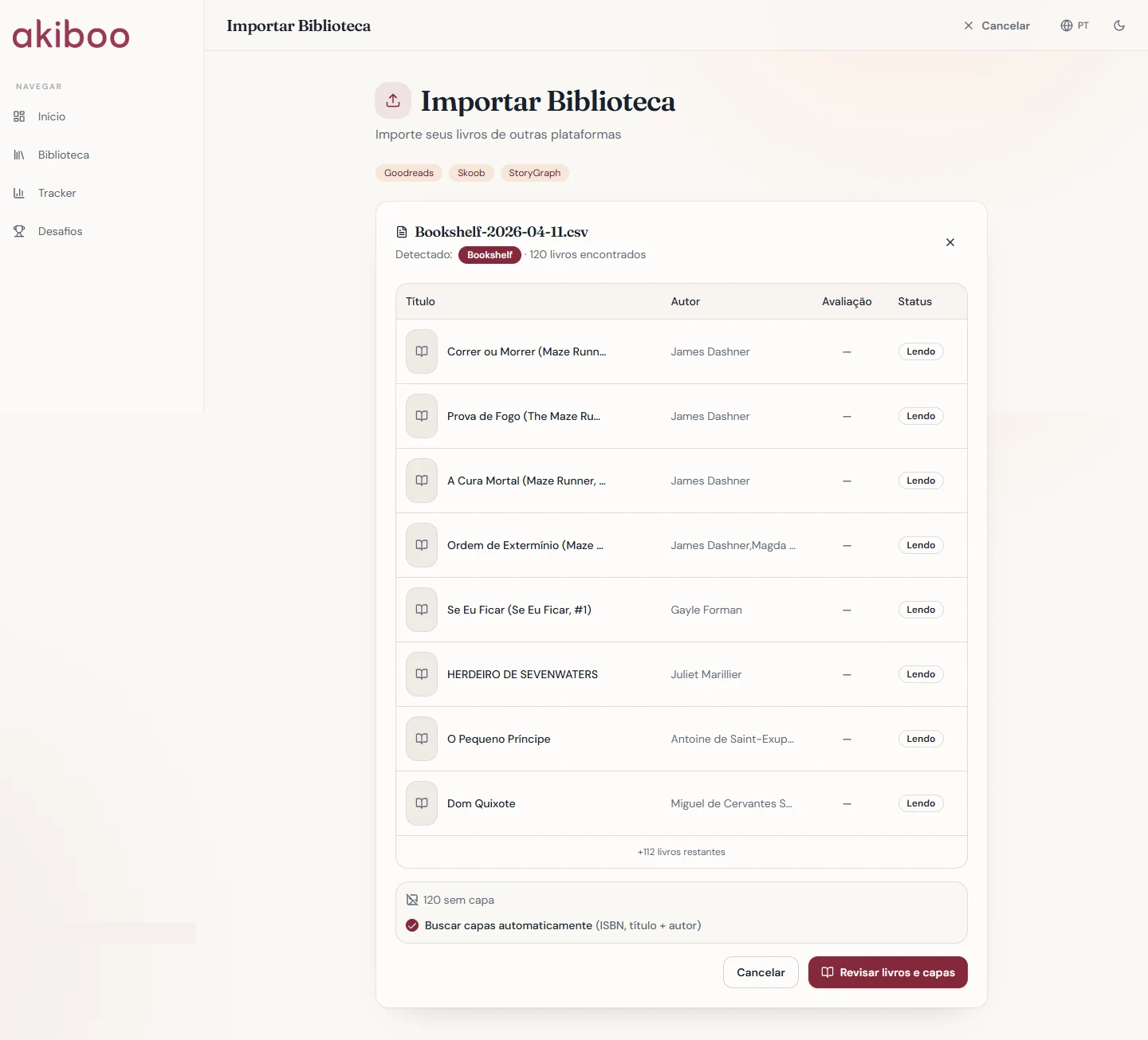
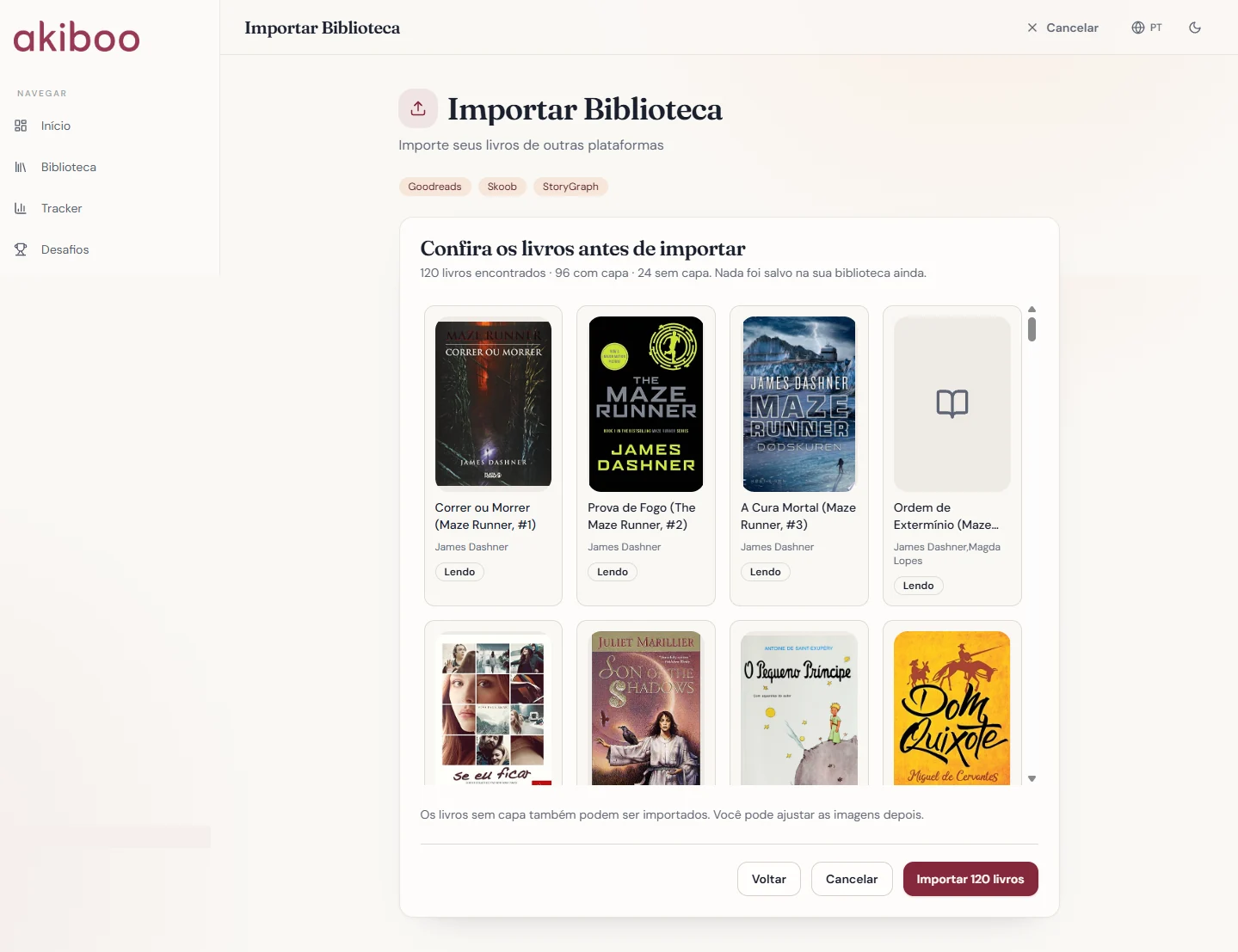
First, select the file. Review the recognized data, prepare the covers and check the books before confirming. Your library only receives the entries after the final confirmation.
Before you start
You need a CSV file compatible with your library data. Keep a copy of the original file before making any changes. This guide covers importing into Akiboo; whether you can export depends on the platform you’re coming from.
1. Prepare your file
If you already have a CSV of your library, keep the header and the original data. Renaming a spreadsheet or a PDF to .csv isn’t enough: the content has to be in a recognized format.
2. Open the import in Akiboo
Sign in to your account and go to the import area. Select the file and wait while it’s read. The app identifies compatible formats and shows a preview of the books.
3. Check before confirming
Review the titles and recognized data. Whether ratings, dates and other fields appear depends on the file’s content and format. If the preview doesn’t match your library, stop and check the CSV.
4. Review the result
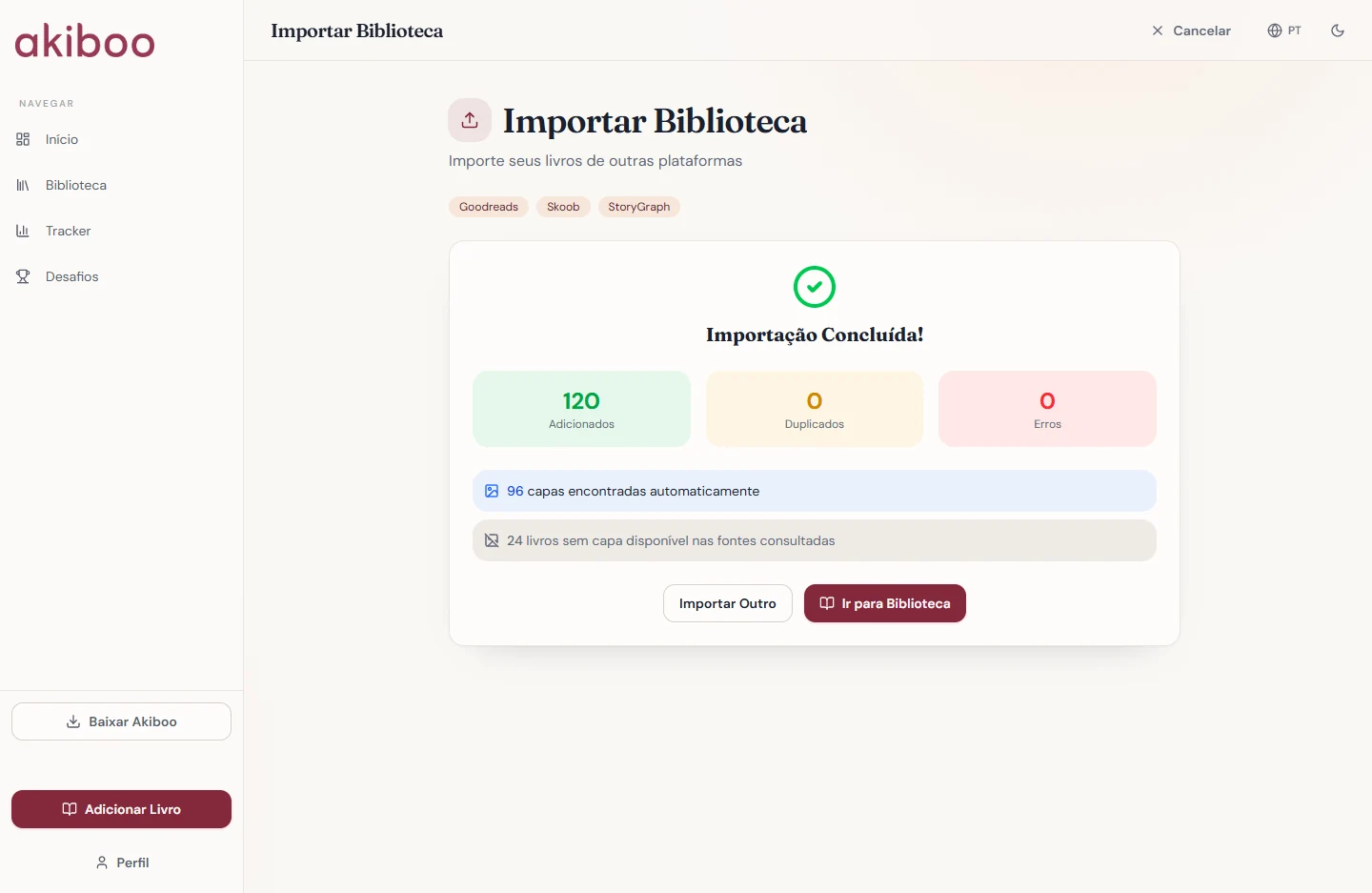
After confirming, look at the summary of books added, duplicates and errors. Covers may be fetched during the process; some books may end up without an image. Check your library when it’s done.
What to check before moving your library
An import starts with a file that contains your book data. CSV is text structured in columns; a photo of your shelf, a PDF or a spreadsheet that was just renamed doesn’t have the same structure. Keep the original file and work on a copy if you need to make adjustments.
This guide covers bringing the file into Akiboo. How you get the file depends on where your records come from. If you don’t have a CSV yet, check the options available wherever you keep your library. You don’t need to share any password to import a file you already have.
How to tell whether the file was recognized correctly
After selecting the file, use the preview as your main checkpoint. Look for a book with a title you know, one with a rating and another with a reading date. Check that each piece of information shows up where you expect.
If titles are missing or the data looks jumbled, don’t confirm the import. Check that the file kept its original header and was saved in the expected format. Garbled characters in names and titles are also worth reviewing before continuing.
Duplicates, covers and missing fields
The import summary separates books added, duplicates and errors. If you try again with the same collection, follow it closely: check the result instead of assuming every item will be added again.
Covers may be fetched separately from the bibliographic data. If a cover doesn’t appear, that doesn’t necessarily mean the book wasn’t imported. Look up the title in your library and review the fields that were available in the original file.
Checklist after importing
Check a sample of books with different statuses. Compare ratings and dates with your previous records. Then organize shelves and tags according to how you want to use Akiboo, without trying to sort out the whole collection at once.
Keep the CSV until you’ve finished this check. If there are errors, note the problem and the file type before trying again. To start by organizing your collection, follow the personal library guide.
Questions about importing from Goodreads
Do I need to enter the password for another account?
File import uses the CSV you select. It doesn’t require the password for the platform you’re coming from.
Will all my information be transferred?
The available fields depend on the file’s format and content. Check the preview before confirming.
What if a book ends up without a cover?
Check whether the entry was added. Fetching covers is a separate step and may not find every image.
Your next story starts here.
Create your account and start organizing your reading. See the free and Premium features on the plans page.