
Premium feature
Challenges, Sagas, Lists, Grids, Favorites and Finished are Premium only. The Achievements tab is also available on the free plan. Learn about Premium.
1. Choose the grid size
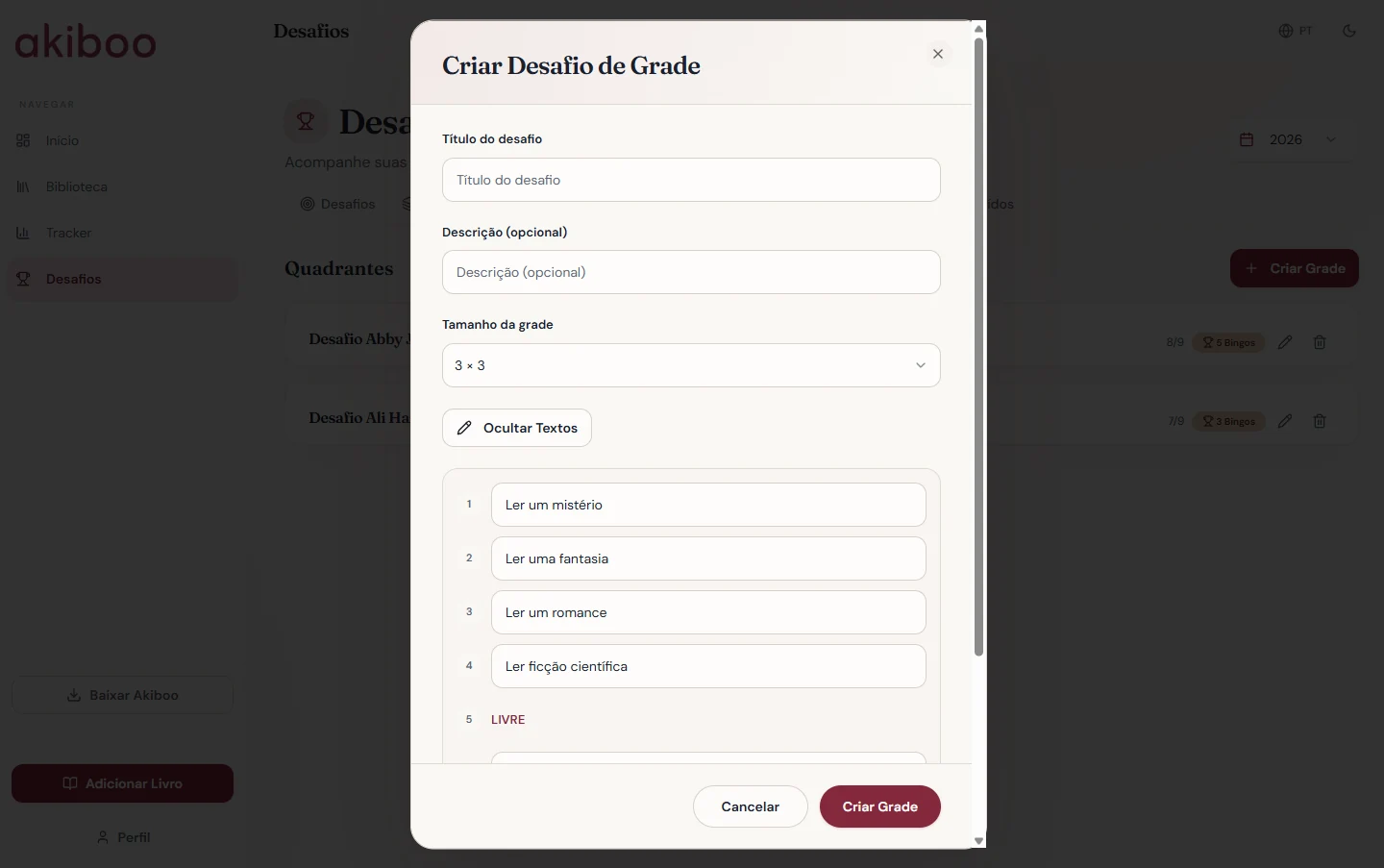
In the Grids area, start creating a grid challenge. Choose one of the sizes offered: 3 × 3, 4 × 4 or 5 × 5. For a first try, a smaller grid means fewer choices and helps you understand the format before planning a bigger challenge.
2. Customize the themes
Open the theme editor to review each square’s criteria. Mix categories you already love with a few discoveries. For example: a mystery, a fantasy, a romance, a book by a Brazilian woman author and a book that’s already on your shelf. These are just examples to adapt to your own taste.
3. Set your rules before you start
Decide whether one book can fill more than one square, whether rereads count and what the deadline is. Also consider the free square when it’s part of the setup. Writing these decisions in the description keeps you from changing the criteria every time you pick a book.
4. Track the books on the grid
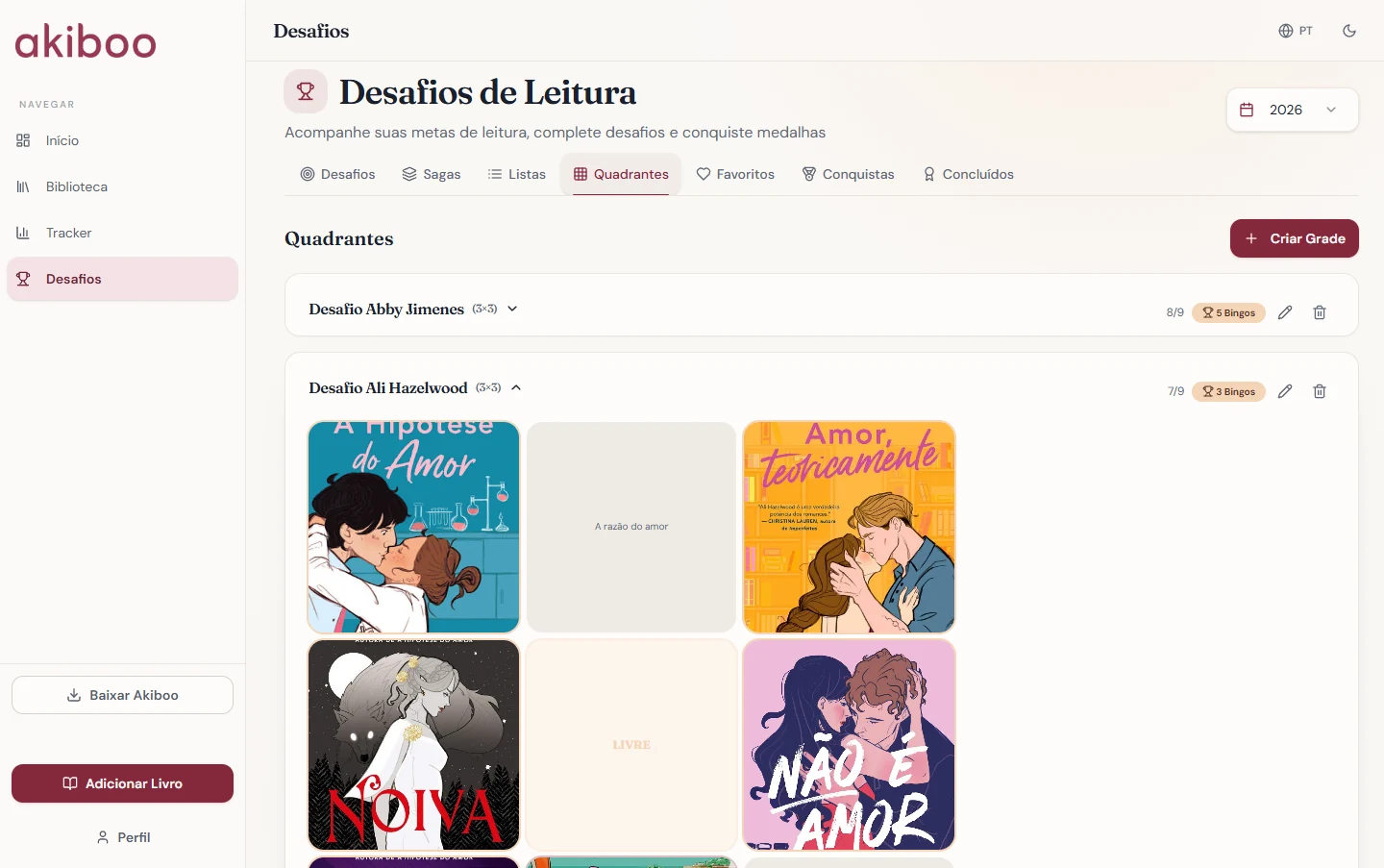
Once it’s created, link books to the squares and check your progress. The cover view makes it easy to remember which picks are already part of the challenge. You can aim to complete a row or the whole grid, depending on the challenge you set up. Grid challenges are part of the Premium plan.
See it in the app
Real demos, silent and looping, with pauses shortened to make them easier to follow.
Set up the bingo grid and themes
Choose the grid size and open the theme editor. Review each category before creating the challenge. Grids is a Premium feature.
Choose books for the bingo squares
Open a bingo square, search for a book in your library and select the title that matches the theme. Its cover then represents your pick on the grid.
Use Akiboo your way.
Start with your next read and explore the features at your own pace. See the free and Premium features in the plans.