
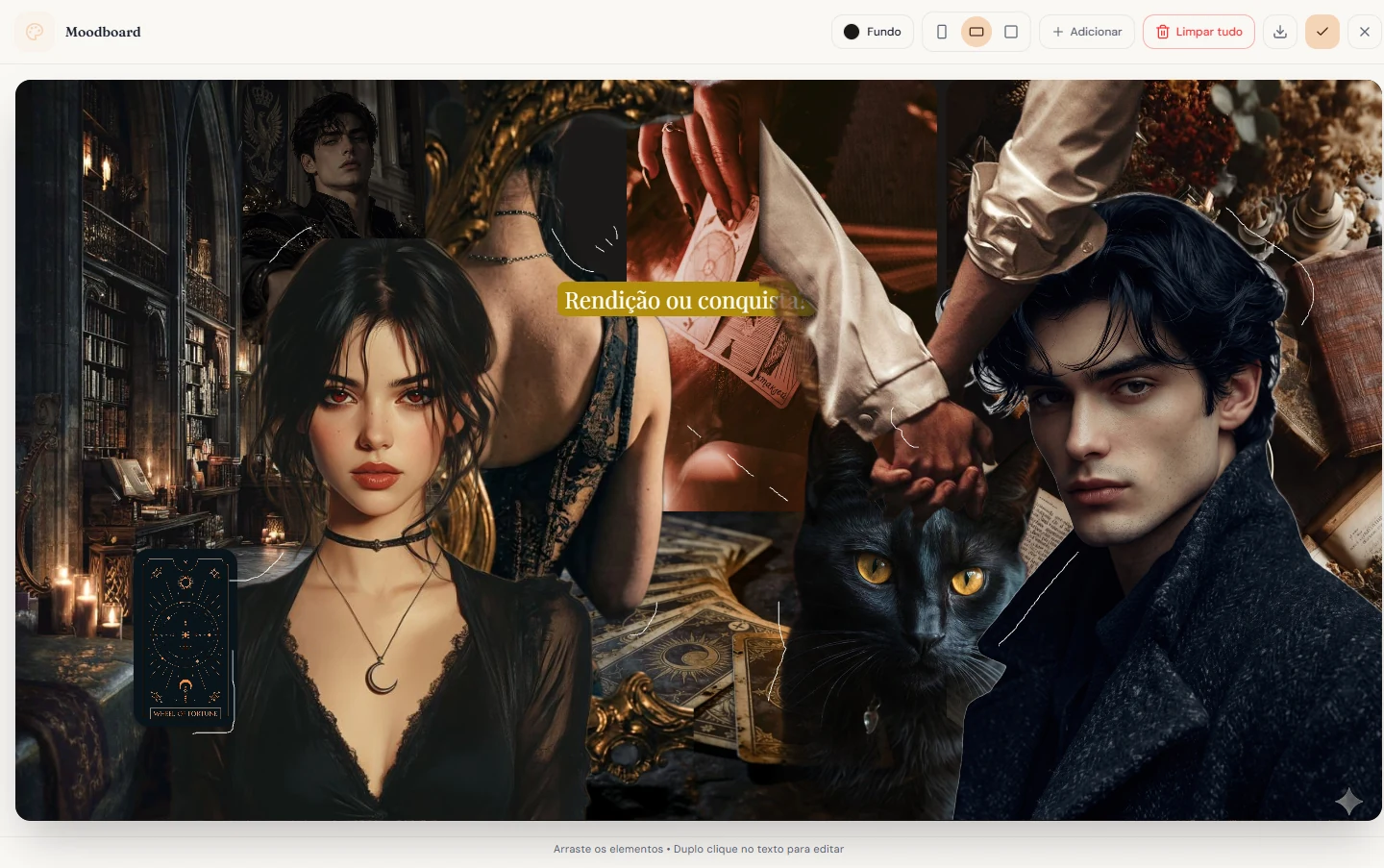
What does a moodboard add to a reading journal?
A rating records an evaluation and a review organizes an opinion. A moodboard preserves visual references: a landscape that recalls the setting, a palette that captures the mood or an object tied to a passage. It can help you revisit feelings that are hard to sum up in stars.
The composition is a personal interpretation. It doesn’t have to illustrate every scene, reproduce a cover or depict characters definitively. The value of the board lies in the connection between the visual choices and the reader’s experience.
Visual elements in an editor linked to the book
Akiboo’s editor lets you work with background, images, cropping, text, quotes, colors, shapes and drawing. The expanded area gives you room to arrange the composition. Elements can represent different parts of the story within the same board.
Cropping an image, for example, selects the area that appears in the composition. Removing the background is a different operation, meant to separate the subject from the image. The tutorials page shows the tools featured in the recordings without mixing up these actions.
Ideas for different genres and experiences
For a fantasy, the board might bring together architecture, objects and textures. For a romance, colors and places can represent the relationship between characters. For a nonfiction read, words and visual references can highlight ideas you want to remember.
These are examples, not mandatory templates in the app. You can create a board with just a few references or a more detailed composition. You don’t need to use every tool to represent a book.
Privacy, references and the Premium plan
The moodboard is part of your personal reading space on Akiboo and is a Premium feature. It lives with the book’s entry, alongside quotes and comments. If you decide to share a screenshot, check what it reveals about the book, including possible spoilers.
Use your own images or images you’re allowed to use. A reference found online doesn’t mean permission for any use. The editor tutorial shows how the tools work; choosing images and having permission to use them remains the responsibility of whoever creates the board.
Get to know each moodboard tool
The editor brings together tools to build the composition piece by piece. Below, see what each tool is for; the how-to instructions are in the moodboard creation and editing tutorial.
Board formats: landscape, portrait and square
The composition can be horizontal, vertical or square. Each proportion suggests a different layout: landscape favors wide scenes; portrait fits a vertical sequence of references; square gives a balanced base for a compact set.
The format belongs to the book’s board. It’s different from framing a single image, which you can adjust by cropping.
Background color to set the mood
The background is the visual base of the moodboard. A dark color can go with mystery references; light tones can make a composition feel lighter. The palette helps build unity even when images come from different contexts.
Changing the background color isn’t the same as adding a color block: the background covers the base of the board, while a block is an element within the composition.
Images for settings, characters and references
Images can represent places, objects, textures and visual interpretations of characters. The board doesn’t need to reproduce a whole scene; a reference can be there just to recall a feeling the book gave you.
Elements can be moved and resized to arrange the composition. Use your own images or images you’re allowed to use for your intended purpose.
Cropping to choose what shows in an image
Cropping adjusts how a reference is framed. It lets you highlight a face, object or detail without giving the whole original image the same space.
This tool selects the visible part of the image. It shouldn’t be confused with background removal, which separates the subject from the scenery.
Background removal to work with the image’s subject
The background removal tool lets you work with a reference that has transparency around the subject. This can help you layer a character or object over other images and colors on the board.
Processing depends on the image and the browser; results may vary, especially with fine details. Manual cropping and layout adjustments remain alternatives for choosing the framing.
Text with font, size and color options
A title, a character’s name or a short comment can give context to the visual references. The editor offers styling options to blend words into the composition, including font, size, color and alignment.
Text is a visual element on the board. For longer comments about the read, the personal summary on the book’s page keeps your writing separate from the composition.
Quotes as elements of the composition
Passages from the book can be part of the board alongside images. A quote gives context to the atmosphere or brings back the story’s language, adding a textual memory to the visual reference.
The moodboard’s quote element and the book’s list of favorite quotes are different spaces. The list organizes passages in the entry; the board lets you weave them into the design of the composition.
Color blocks to organize the palette
A color block can work as a backdrop for text, a highlight for a detail or part of a palette. It helps create contrast and visually separate nearby references.
As an independent element, a block can cover just one region of the board. This lets you combine areas of color with images without changing the background of the whole composition.
Freehand drawing to add personal touches
The drawing tool lets you add strokes directly to the board. Lines, small symbols and doodles can connect references or mark something you want to highlight.
Drawing complements images and words: you don’t need to know how to illustrate to use a few strokes as part of the book’s visual memory.
Position, size, rotation and layers
How you arrange the elements sets the board’s visual rhythm. Adjusting position and size lets you create a main reference and supporting details; rotation adds more layout possibilities.
Layer actions let you bring elements forward or send them back. This order matters when an image, text or color block overlaps another element.
Expanded area to work on the composition
The expanded view gives you more room to edit the board’s details. It helps you see the whole and work on small elements without being limited to the book page’s area.
The expanded mode shows the same composition linked to the title. It changes your workspace; it doesn’t create a separate moodboard.
Export the composition as an image
When the moodboard is finished, you can download it as an image. That way, the composition is available outside Akiboo to keep or share.
Before sharing, check the references you used and possible spoilers. The journal is private in the app, but an image you choose to post will be as visible as the place where you share it.
What each piece of information is for
| Feature or information | Purpose |
|---|---|
| Background and colors | Atmosphere and visual base of the composition |
| Images and cropping | Visual references and framing |
| Text and quotes | Words and passages tied to the read |
| Shapes and drawing | Graphic details and personal touches |
| Book page | Context that connects the board to your other entries |
Features that work together
Discover the journal’s other entries · See how the library brings your books together
To learn the app’s actions, visit the guides hub. To choose a subscription, check out Akiboo’s plans.