
1. Open the sign-in screen
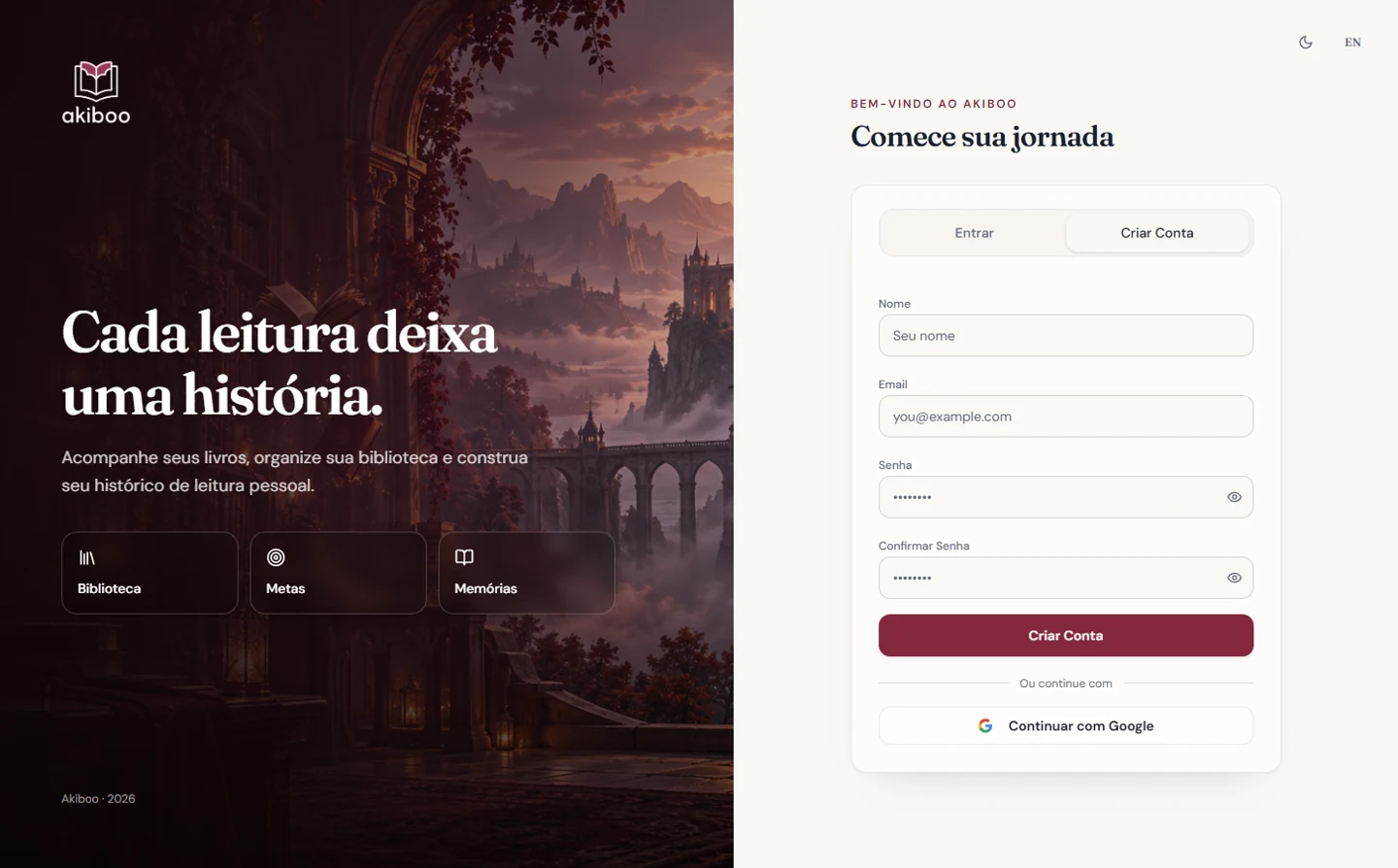
Go to app.akiboo.com. Choose the language you prefer and select Create Account to sign up with email and password. If you already have an account, use Sign In to access your existing library.
2. Fill in your details
Enter the requested details and double-check your email before submitting. Choose a password just for this account. You can also use Continue with Google, when that option is available, and select the account you want to link to Akiboo.
3. Confirm your email
If you signed up with email and password, check your inbox and follow the confirmation link Akiboo sent you. If you can’t find the message, check your spam folder. Use the most recent message and, if the link has expired, request a new one from the sign-in flow.
4. Move on to onboarding
Once you’ve confirmed your access and signed in, follow the welcome tour. You’ll be able to choose your goal, add your current read and get to know the navigation. The onboarding guide shows this sequence with real screenshots. Continue to onboarding →